
 Absence planner
 Absence planner
Overview
Absences are managed in Umana using the Absence Planner module.
- Absences are requested by the employee.
- Requested absence are approved (or refused) by the manager.
- Approved absences are available to be taken on the web timesheet. It is up to the employees to confirm they are actually taking the absence.
Time banks
Employees can have time banks (vacation, sickness, overtimes, etc.) with entitlement deposited or earned, and time taken from the when the employee is absent. More about time banks
Absence Request Page
This page lets you manage your existing requests and create new ones.
Changes made here must be saved before going to a new module.
It has 3 panels:
- The calendar
- General info about the request
Also SAVE / CANCEL / NEW buttons for the request - Dates
1. Calendar panel
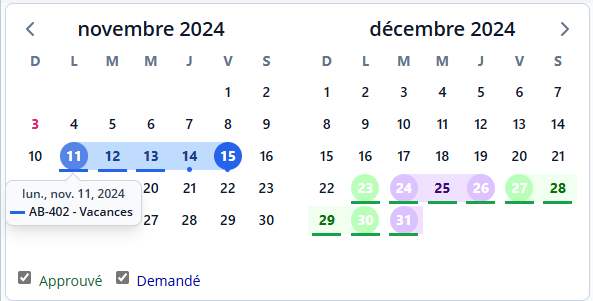
The calendar shows existing requests (in a pale color) and the selected request in a bright color.
Holidays are shown in purple). Approved requests are in green. And those still pending approval are in blue. .
Dates with multiple requests (that day) have multiple dots under the date. Dates with just one request have a line if it is a full day, and otherwise a single dot.
On a computer with a mouse, hover over a date to see a "tool-top" of the absences that day. That does not seem possible on a tablet or phone.
Using the calendar
To select a request: click on a date with a request.
To create a new request: click the NEW button, then click the start date, and then the end date of the request. (If it is just for one day, click twice.)
Once a requested is selected: you use the calendar to add / remove dates.
To select or create another request: first click CANCEL or SAVE to get back into selection mode.
The and buttons on the calendar move back and forward in the year.
2. General Information panel
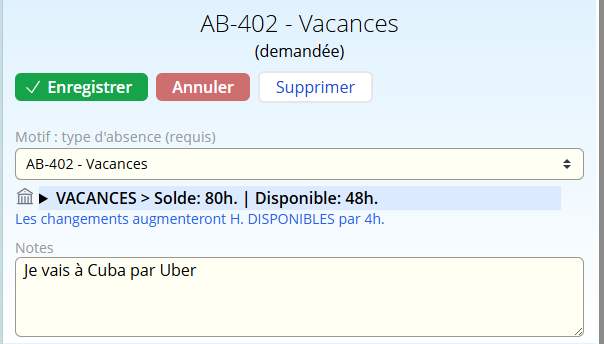
This panel has information that applies to the entire request.
Action Buttons
The SAVE / CANCEL / NEW buttons apply to the entire request.
- To change only dates, use the Modify Dates button on the dates panel instead.
Save your changes
If you don't save your changes before leaving this page, they will be lost.
When you save your request, the hours are verified against the hours available in your time bank. If you don't have enough hours you may need change the absence type, or even split the request in two, with hours from different banks.
If you change the type or days of an already approved absence, it will need to be approved again. Add a note to your manager about why you changed it.
To create a new request
Click the NEW button. Then click the start date followed by the end date in the calendar.
You can add a second absence to a date if the first absence is not a full day. In this case, Umana creates an absence of just one day, and the remaining hours not taken by the first absence. You can change that afterwards.
The Cancel button
will ignore your changes (if any) and deselect the absence.
The Delete button
deletes your entire request — all dates of it.
Absence type (reason)
Here you select the absence type (from those that can be requested in advance)
- This list is not identical to the list of absence codes in the timesheet. Each code here maps to a timesheet absence code.
If you change the type, the new absence type might have different rounding rules. Umana will adjust your hours each day and let you know.
A new bank will also have a different number of hours available.
Below the drop-down
Click the banks icon for an overview of all your banks.
- This opens a modal (pop-up) window so you stay on the same page. On that modal window, you can click on a bank for more detail.
Next to this arrow is information about your related time bank. Click for more detail.
- The line below that shows how your changes will affect the bank balance.
Notes
These are viewed by your manager when considering whether to approve the absence.
3. Dates panel
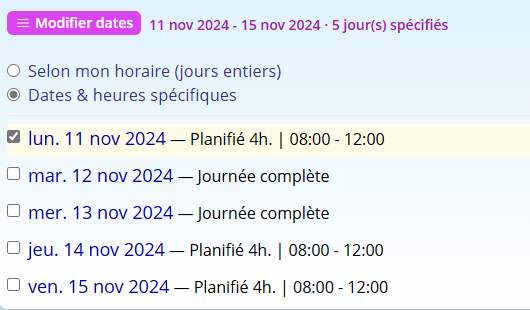
Here is where you view, and can adjust, the dates of your request.
Date Selection modes
There are two different ways of specifying dates. (The screen-shot above shows the second.)
Full days over a date range, based on my schedule.
You specify the date range (start and end dates), and Umana applies the schedule you have when the date arrives.
This is the default mode when you create a new absence request (unless it is for a day which already has a request). But you can change it.
A great choice for vacations! It is also great if your schedule might change between now and then — especially the days of the week you work can vary.
The down side is that it only handles full days, and it doesn't allow gaps — although it is smart enough to skip weekends and holidays.
Umana will display the dates below according to your schedule currently assigned on those dates. If your schedule changes between now and the absence date, it will apply the new schedule you have at that time.
Specific dates and times
The mode lets to specify exact dates, not necessarily contiguous, and not necessarily full days. It gives you full control, day by day.
Click the Specific dates... option to select this mode.
When you do so, Umana shows the dates based on your schedule as it knows it now. Should a new schedule be assigned to you later, the absence request won't change.
It looks like the screen-shot above. Note the check-mark by each date, letting you select which date(s) to change. To change just one date, you can double-click (double-tap) the date.
Modifying dates
The MODIFY DATES button works differently in the two date selection modes. Click the button to choose one the options available.
In Full-days over a date range mode, you can...
- Change the start date or • Change the end date
In Specific dates and times mode, you can...
Add dates
Choose the add dates option. Then select the dates to add by clicking on them on the calendar. Click done when finished.
Remove dates or • Modify times
First select the date(s) to act upon, by checking dates in the dates panel or clicking on dates in the calendar.
Double-click (double-tap) a date in the dates panel to modify times for that date only.
See also
Absence Planner Administration | Time banks and Planned absences | My Banks© Carver Technologies, 2025 • Updated: 2025/02/07